 PecoFence
A calmer desktop. Everything within reach.
PecoFence puts your files into glass fences on the Windows 11 desktop, keeps real folders one click away, and brings it all above any app with a single shortcut. Free and open source.
Download for Windows 11 View the source on GitHub
Portable ZIP for x64. No account, no installer. MIT license.
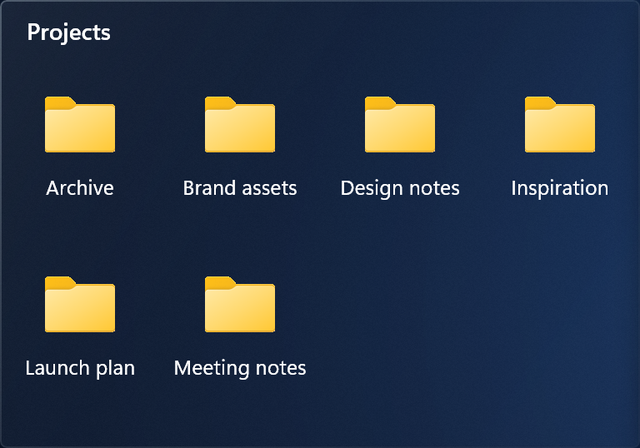
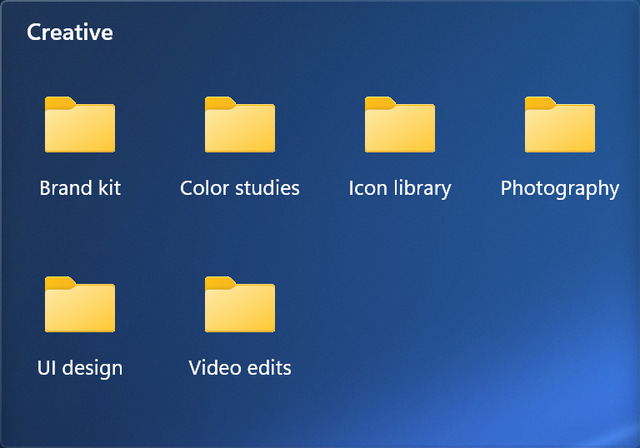
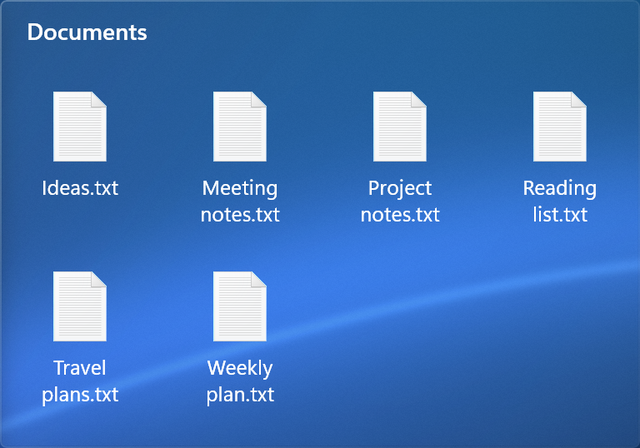
Watch the 30-second tour
Auto-sorting and project tabs in half a minute. Original soundtrack, no voiceover, English on-screen text.
See it work
Every clip below is PecoFence recorded on a real Windows 11 desktop with demo files.
Drag files in. Resize the fence and snap it beside the others.
A live folder on your desktop. Open subfolders and watch changes arrive as they happen.
Switch from Work to Art in a click. Drag a tab out when it deserves its own fence.
Press Ctrl Alt Space to bring your fences above the current app. Esc takes you back.
Double-click the desktop to hide every fence, and again to bring them back. Roll a fence up to its title when you need the room.
Rules by file type, name, wildcard, age or size file new items into the right fence. Files stay where they are on disk.
Small details, better everyday use
- Glass that fits your wallpaper
- Fluent and Liquid Glass themes, light and dark modes, per-fence colors, opacity and icon tinting.
- Familiar file handling
- Explorer context menus, drag and drop, copy and paste, multi-select, thumbnails, and icon, list or details views.
- Space when you need it
- Roll a fence up to its title bar. Hover to expand. Lock a layout once you like it.
- A way back
- Layout snapshots, daily backups, configuration import and export, and swapping fences between displays.
- A small footprint
- A native Rust application. The settings panel loads WebView2 only when you open it.
- Your files stay yours
- Automatic rules only change which fence shows a file. Moves you start yourself work exactly like Explorer.
Speaks your language
- English
- 简体中文
- 繁體中文
- 日本語
- 한국어
- Deutsch
- Français
- Español
- Português (Brasil)
- Русский
Switch instantly in Settings, General, Display language, or follow Windows. Every translation ships inside the app and works offline. Your file names and custom fence names are never rewritten.
Get PecoFence
- Download the latest
pecofence-<version>-x64.zipfrom the releases page. - Extract the whole ZIP into a folder and run
pecofence.exe. - Start organizing. The tray icon opens Settings whenever you need it.
The first launch creates Programs, Folders, Files and documents, and Desktop fences in your language. Your desktop icons come back when you exit.
- Windows 11 22H2 or later, x64.
- Microsoft Edge WebView2 Runtime, which Windows 11 already includes, for the Settings window.
- Keep
WebView2Loader.dllandpecofence-watchdog.exebeside the app. - Builds are currently unsigned. Windows may ask you to confirm the first launch.